


Showing posts with label windows 7. Show all posts
Showing posts with label windows 7. Show all posts
Thursday, October 14, 2010
How to run DOS Programs and Games in Windows 7 & Vista..
DOS programs and games have been among us for long and still they are adored and loved by many of us. I can remember my-self playing those games since I was a child and still love them as I used to.
 But after I got Windows 7 on my laptop I havenot played any of those games because of this kind-of errors:

This is because in Win7 and Vista there's no any DOS stimulator to run those programs. But now with this post i'll help you run these program in Windows 7 & vista too.
DOSBox is a virtual DOS program stimulator that help you run DOS program in W7 and Vista based OS. Now to run the DOS program you'll need to follow these steps:
1. Download DOSbox form the link below:

2. Then just to make you work easy, copy all your DOS games and programs in a Single Folder of a Drive -- 'i named it DOS and pasted in Drive D:'.
Then install and run the downloaded program.
 4. Then you'll see the virtual drive Z: created by the program. Now you'll need to mount the DOS games folder in the Virtual drive. Just Type:
mount (drive letter, where the games are copied) (folder location)


If you still have any Queries just comment below:

This is because in Win7 and Vista there's no any DOS stimulator to run those programs. But now with this post i'll help you run these program in Windows 7 & vista too.
DOSBox is a virtual DOS program stimulator that help you run DOS program in W7 and Vista based OS. Now to run the DOS program you'll need to follow these steps:
1. Download DOSbox form the link below:
2. Then just to make you work easy, copy all your DOS games and programs in a Single Folder of a Drive -- 'i named it DOS and pasted in Drive D:'.
Then install and run the downloaded program.

mount (drive letter, where the games are copied) (folder location)
In my case - mount D D:\DOS

5. Then locate your drive, where the game is copied.
-'in my case its the D: drive'

Then locate the game folder.
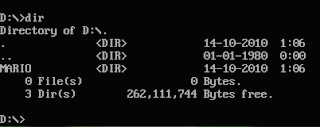
-in my case its 'Mario' and i've used this command-- 'cd Mario'

Similarly search for the game or program execution file .exe.

Then load the exe file.

Now the Game will load and you can enjoy the DOS game in Windows 7 or even Vista.-'in my case its the D: drive'

Then locate the game folder.
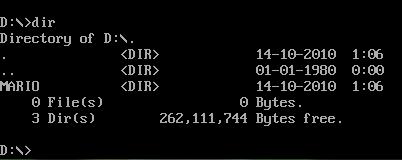
-in my case its 'Mario' and i've used this command-- 'cd Mario'

Similarly search for the game or program execution file .exe.

Then load the exe file.


If you still have any Queries just comment below:
12:54 AM 2
Tuesday, October 5, 2010
How to pin RECYCLE BIN to your Windows 7 task-bar..
Its really amazing to see how flexible is our OS and to learn how to tweak it the way we like it. In this post we shall talk about the method to pin your recycle bin to your Windows 7 task-bar. This way it will be easier for you to access the recycle bin and the much need clean window without icons.

So this is what you need to do:
1. First create a shortcut link on your window and paste the following path:
%SystemRoot%\explorer.exe shell:RecycleBinFolder

2. Then click 'Next', and name it Recycle Bin.

3. Then give it a relevant icon by going to properties>>select icon.

Now just drag the short-cut to the task bar to pin it. Then the work is done. Now you can remove the recycle bin icon from your window and keep your window free from icons. n' Enjoy :)
6:30 AM 0
Subscribe to:
Posts (Atom)


